

Migrating Salesforce Activity History to HubSpot: Separate Real Follow-Ups from Logged Noise
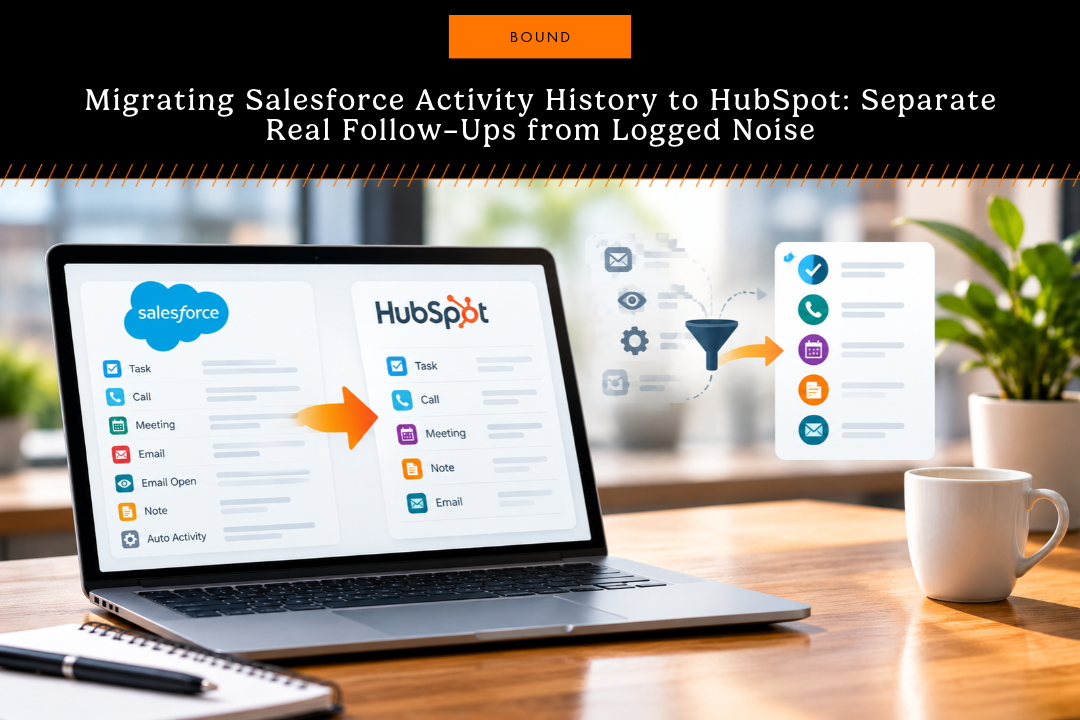
A raw Salesforce activity export dumps everything into your spreadsheet, including email opens, auto-logged touches, and years of dead tasks. One client's export pulled 21,962 records when the useful set was 922. Before you touch HubSpot, decide what history earns its spot. Filter in Salesforce first, map fields on paper, match contacts by email, validate counts after import, and keep a rollback file. The technical lift is easy. The strategy is where migrations go sideways.
When you export activity history from Salesforce, you don't just get real follow-up tasks. You get everything. Logged emails, email opens, workflow pings, and a decade of accumulated clutter. One of our clients ran an export that returned 21,962 records. The properly filtered version held 922. That's the gap between a clean migration and a mess your sales team will fight for months.
The hard part isn't technical. It's deciding what history is worth carrying over, and what should stay behind in Salesforce.
What Activity History Should You Actually Migrate?
Keep tasks and interactions tied to active deals, recent conversations with context, and notes your reps still reference. Drop email opens, automated pings, and old completed tasks that don't inform anything today.
Not all activity carries weight. Audit what's in Salesforce before you export anything.Keep these:
- Open tasks tied to live opportunities
- Calls and meetings from the last 12 to 24 months, depending on your sales cycle
- Notes that give context for current deals
- Interactions that still shape how a rep approaches the account
Leave these behind:
- Email opens, clicks, and automated engagement logs
- System-generated activity with no human attached
- Completed tasks from closed-lost deals that went cold years ago
- Duplicates and dead entries
The point is to carry over history that helps your team make the next move, not history that pads the database. If you're not sure what counts as meaningful, go look at how your reps log activity in Salesforce today. That'll tell you what to protect.
Define Filter Rules Before You Export
Set filters in Salesforce before you export, not after. Common cuts: task type, subject keywords, completion status, date window, and owner.
Filtering in Salesforce saves hours of cleanup later. Narrow the dataset before it ever hits a spreadsheet.
Common filter approaches:
- By task type. Export calls, meetings, and notes. Skip email logs and automated activity.
- By subject keywords. Pull tasks containing "proposal," "demo," "follow-up," or your team's shorthand.
- By status. Export open tasks separately from completed ones. You might migrate opens and archive the rest.
- By date. Cap it at 12 to 24 months. Older activity rarely moves a deal.
- By owner. If you're migrating per team, filter by rep to keep the file manageable.
Once your filters are set, run a test export on a small subset and check the record count against what you expected. If the number looks wrong, adjust and run it again. Don't skip this. Validation here is the difference between a clean cutover and a weekend of cleanup.
Map HubSpot Task Fields Before Import
HubSpot's task object doesn't match Salesforce one-to-one. Document the field mapping before you touch the import tool.
HubSpot's task structure is close to Salesforce but not identical. Write the mapping down before you start, because this is where most migrations trip.Required HubSpot task fields:
- Task details. The description or body
- Record associations. Which contact, company, or deal the task sits on
- Task owner. The rep responsible
- Due date. When it's due
- Task status. Open, completed, or in progress
A working Salesforce-to-HubSpot map:
| Salesforce field | HubSpot field |
|---|---|
| Subject | Task details |
| WhoId (contact) | Contact association |
| WhatId (opportunity or account) | Deal or Company association |
| OwnerId | Task owner |
| ActivityDate | Due date |
Document the mapping before you start. It's your reference during import, and it helps the team understand how data translates. If you're working with a Salesforce consulting partner, they can validate the map and flag edge cases early. For the full HubSpot task schema, check HubSpot's engagements API docs so you're mapping to real field names, not guesses.
Use Contact Email for Matching on a One-Time Import
For a one-time cutover with no ongoing sync, contact email is the most reliable match key. It's unique, stable, and clean.
For a one-time migration, email is the right primary identifier. It's unique per contact and it rarely changes.
Why email works:
- Unique per contact
- Rarely edited after creation
- Standard across both systems in practice, even though Salesforce doesn't enforce it as required on the Contact object
- Less prone to the fuzzy-match problems you hit with names or external IDs
Consider a Clean-Slate Approach for Polluted Data
If your Salesforce contact data is already a mess, skip the full import. Start fresh in HubSpot with active contacts and recent activity, and leave the archive where it is.
If your Salesforce data is riddled with duplicates, blanks, and inconsistent formatting, you'll be better off starting fresh in HubSpot than importing the whole archive.
A clean-slate approach means:
- Importing only active, high-quality contacts
- Bringing over only recent, relevant activity
- Keeping older low-value records in Salesforce for reference
- Using HubSpot's data quality tools to prevent the next round of pollution
It's more work upfront, but you save months of cleanup later. Your reps start with a clean slate instead of inheriting the mess.
If you do import everything, plan a post-import cleanup phase for deduplication, standardization, and validation. HubSpot consulting support speeds this up considerably when the dataset is big or ugly.
Document Your Decision Log
Keep a running log of what you migrated, what you cut, and why. It saves you when stakeholders ask questions six months in.
As you make calls on what to carry and what to leave, write them down. A simple log should capture:
- What's being migrated and why
- What's being excluded and why
- Any transformations or field mappings applied
- Known data quality issues and how you handled them
- Records that needed special treatment
This log is gold when someone six months out asks why a specific record didn't come across. It also keeps the team aligned on the reasoning behind the migration, not just the output.
Validate After Import
Don't trust the import blindly. Run a post-import check on record counts, associations, owners, dates, and completeness.
Once the data is in HubSpot, verify it. A quick validation pass catches problems while they're still cheap to fix.
Check these:
- Record counts. Do imported task counts match your export? If not, find out why.
- Associations. Pick 10 to 20 random tasks and confirm they're attached to the right contact or deal.
- Owners. Make sure task owners mapped correctly and reps can see their work.
- Dates. Spot-check due dates and activity dates.
- Completeness. Scan for blank fields that should have data. If there's a pattern, you may need to re-import.
If something's off, don't panic. Document the issue and decide whether to fix in HubSpot or re-import with corrected source data. For tangled scenarios, talking to a CRM expert early saves days.
Have a Rollback Plan
Before you flip the switch, know how you'll undo the import if it goes wrong. Keep the original export, don't delete Salesforce data yet, and back up HubSpot.
Have a rollback plan ready before you go live.
Rollback checklist:
- Keep the original Salesforce export file in a safe place
- Don't delete anything in Salesforce until HubSpot is validated
- Confirm you can re-import without creating duplicates
- Back up HubSpot before the import runs
A rollback plan isn't pessimism. It's prep. Industry guidance from groups like Salesforce's data quality dashboard and Gartner's data migration research both treat documented rollback as a baseline, not an add-on.
FAQs
How much activity history should I migrate from Salesforce to HubSpot?
Most teams migrate the last 12 to 24 months of calls, meetings, and notes tied to active deals. Older activity rarely influences current decisions and clogs the new database. If your sales cycle runs longer, extend the window to match.
What's the best way to match Salesforce contacts to HubSpot contacts during import?
Contact email is the most reliable match field for a one-time migration. It's unique per contact and stable over time. Create any missing contacts in HubSpot before importing tasks so nothing ends up orphaned.
Should I migrate email opens and clicks from Salesforce to HubSpot?
No. Email engagement logs add volume without insight. HubSpot tracks its own engagement data once you're sending from the platform, so historical opens and clicks from Salesforce don't help your reps make better calls.
What happens if my Salesforce data is too messy to migrate cleanly?
Consider a clean-slate approach. Import only active, high-quality contacts and recent relevant activity, and leave the archive in Salesforce. It takes more work upfront, but your team starts in HubSpot with a usable database instead of inheriting old problems.
How do I validate a Salesforce to HubSpot activity migration?
Compare record counts between export and import, spot-check 10 to 20 random tasks for correct associations, confirm task owners mapped properly, verify date fields, and scan for blank fields that should have data. Fix issues before you give reps access.
The Real Work Happens Before Export
The technical side of migrating activity history is simple. The hard part is deciding what to migrate and making sure the data is clean on both ends.
Spend the time upfront filtering, mapping, and documenting. Validate after import. Don't be afraid to leave history behind. A smaller, cleaner dataset in HubSpot will serve your team better than a bloated import full of noise.
If you're running a complex Salesforce-to-HubSpot migration or need help with data strategy, Concept's CRM consulting services can walk you through it and help you dodge the usual pitfalls.
Partner With Concept
Share your details and our team will reach out to discuss collaboration opportunities