

When Your CRM Sync Says "Connected" But Data Isn't Flowing: A HubSpot-Salesforce Troubleshooting Checklist
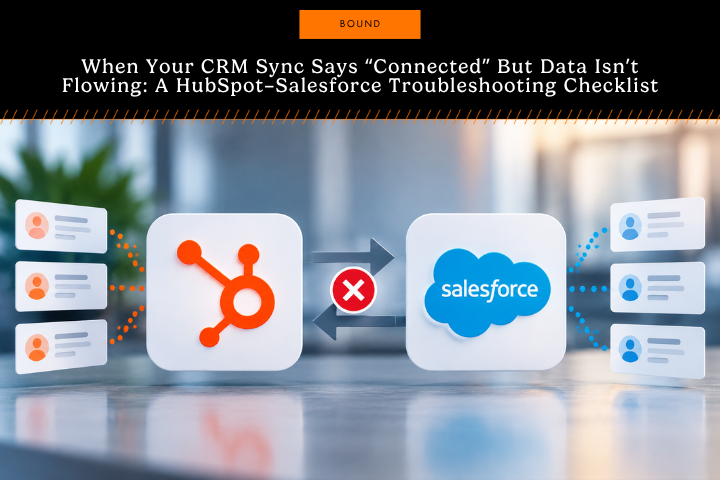
A green "connected" status only confirms HubSpot and Salesforce can talk to each other. It doesn't confirm that records are syncing. When data stops flowing without an error message, the cause is almost always one of five things: broken field mappings, sync rules filtering out records, revoked API permissions, duplicate detection blocking transfers, or a recent change to either system. Work through each layer below to find the break.
The connection status shows green. The integration logs report no errors. Records still aren't syncing between HubSpot and Salesforce.
This happens more than most admins expect, and it's hard to diagnose because everything looks fine on the surface. A healthy connection status hides silent failures happening deeper in the integration layer. Field mappings drift. Sync rules quietly exclude records. API users lose permissions. Duplicate detection blocks transfers. None of this triggers an alert. They just stop data from moving.
This checklist covers the most common reasons a HubSpot-Salesforce sync reports as connected while records sit stuck. Start at the top and work down.
Why Sync Status Doesn't Tell the Whole Story
A "connected" status confirms that the two systems can communicate. It says nothing about whether data is moving between them.
Think of it like a phone line that's active, but nobody's talking. The integration checks credentials, confirms API access, and confirms the connection is live. It doesn't continuously verify that individual records are syncing correctly. That's the gap between a green light and zero data movement.
Most troubleshooting stalls here. Teams see a valid connection and assume the sync should work. When it doesn't, they restart the integration or re-authenticate the connection, steps that rarely touch the real problem.
Check Your Field Mappings First
Field mapping mismatches cause more silent sync failures than any other issue. If a HubSpot field doesn't map correctly to its Salesforce counterpart, the sync skips that record or fails without an error.
Review your active field mappings:
- Open your HubSpot-Salesforce integration settings
- Go to the field mapping section
- Confirm required fields are mapped on both sides
- Check for fields renamed or removed in either system
Common mapping issues:
- Required fields left unmapped. If Salesforce requires a field HubSpot isn't sending, the record won't create.
- Custom field mismatches. Custom fields in Salesforce need explicit mapping. They won't auto-match to HubSpot fields.
- Data type conflicts. A text field in HubSpot mapped to a picklist in Salesforce fails if the values don't match exactly.
- Deleted fields still in mappings. If a field was deleted in Salesforce but the mapping still exists, syncs will error.
Test one record manually. Create a contact in HubSpot with every required field filled in, then check if it lands in Salesforce with the correct data. If it doesn't, the field mappings are your problem.
Verify Your Sync Rules and Filters
Sync rules decide which records actually cross between systems. A record can exist in HubSpot and never reach Salesforce if your sync rules exclude it. On V2 Sync, HubSpot Inclusion Lists on Contacts and Companies control what syncs from HubSpot to Salesforce. Syncing from Salesforce to HubSpot runs on your sync rules plus the Salesforce security settings that govern what the connected user can see.
Check both directions:
- HubSpot to Salesforce: Do your Inclusion Lists or filters exclude certain record types, statuses, or custom field values?
- Salesforce to HubSpot: Are you syncing every record, or only the ones the connected user has permission to view and that match your rules?
Common filter problems:
- Status-based exclusions. Records marked "Do Not Contact" or similar statuses may get filtered out.
- Record type restrictions. You might be syncing only specific record types and leaving others behind.
- Custom field conditions. Rules built on custom fields exclude records when those fields sit empty.
- Date-based filters. Older records may be excluded if your rules filter by creation date.
If your sync rules changed recently, that's often when silent failures start. A small change, like adding a status filter, can stop hundreds of records from syncing overnight.
Disable filters temporarily and check if records sync. If they do, your filters are the cause. Rebuild them to be specific instead of broad.
Check API User Permissions
The Salesforce user connecting HubSpot to Salesforce needs read and write access. If those permissions were revoked or restricted, the sync fails without warning.
Confirm your API user has:
- Read access to every object being synced (Contacts, Accounts, Opportunities, etc.)
- Create and update permissions for those objects
- Access to the custom fields being mapped
- No IP restrictions blocking the integration
- Active status (API users can be deactivated without notice)
If your Salesforce admin recently updated security policies, API permissions may have been affected. This happens often after security audits or when a team rolls out IP whitelisting. Salesforce's own security documentation covers how permission changes affect connected apps.
Log in as the API user directly and try creating a record by hand. If you can't, the permissions issue is confirmed. If you can create records manually, but the sync still fails, look elsewhere.
Look for Duplicate Detection and Merge Rules
Salesforce duplicate detection can block a sync if it flags an incoming record as a match for one that already exists. When HubSpot pushes a contact that trips a duplicate rule, the sync stops there.
Check your Salesforce duplicate rules:
- Go to Setup > Duplicate Rules
- Review which rules are active
- Check the matching criteria (email, phone, name, etc.)
- Confirm the rules aren't matching too broadly
Common duplicate detection issues:
- Email-based matching. If two records share an email address, one won't sync.
- Phone number matching. Similar phone numbers can trigger false positives.
- Name variations. "John Smith" and "Jon Smith" can get flagged as duplicates.
- Inactive rules still blocking. Disabled rules can still interfere if they weren't deactivated correctly.
If duplicate detection is the culprit, edit the duplicate rule conditions so the rule doesn't fire when Current User: Username equals your Connected Salesforce Username. This stops the duplicate rule from running for the Salesforce connected user without disabling it for anyone else in the org. If you'd rather confirm the cause first, tighten the matching criteria or disable the rule temporarily and watch whether records start flowing.
Verify Your Sync Direction and Frequency
Bidirectional syncs create confusion about which system is the source of truth. If HubSpot is syncing to Salesforce, but you're expecting Salesforce changes to flow back, nothing will happen.
Confirm:
- Direction: One-way (HubSpot to Salesforce only) or bidirectional?
- Scope: Are all objects syncing in each direction, or only specific ones?
A recent change to sync direction or frequency often lines up when records stopped flowing.
Check your integration logs for the timestamp of the last successful sync. If it's been hours or days, frequency is likely the cause.
Check for API Rate Limits and Throttling
Both HubSpot and Salesforce cap how many API calls you can make in a given window. When a sync hits that limit, records queue up and stop transferring. HubSpot's API documentation and Salesforce's API limits guide both cover current caps.
This is more likely if:
- You're syncing a large volume of records
- You recently added new fields or objects to the sync
- Other integrations are running against the same Salesforce org
Check your logs for rate limit errors. If you find them:
- Reduce the number of fields being synced
- Contact Salesforce support about a rate limit increase
Review Recent Changes to Either System
Silent sync failures usually follow a change. If the sync was working and then stopped, something shifted.
Ask:
- Did a Salesforce admin update security policies?
- Were fields renamed or deleted in either system?
- Did picklist values change (new values added, values deactivated or deleted, or values relabeled)?
- Did someone edit the API user's permissions?
- Were sync rules or filters updated?
- Did your HubSpot subscription tier change?
Pinpoint when the sync stopped and check the system audit logs in both HubSpot and Salesforce for that window. Most silent failures trace back to a specific, identifiable change.
When to Bring in Integration Expertise
If you've worked through this checklist and records still aren't syncing, the cause is likely more complex:
- Custom code or workflows interfering with the sync
- Salesforce configuration issues requiring admin-level access
- HubSpot-specific settings that need adjustment
- Data quality issues preventing records from matching
Teams that manage HubSpot-Salesforce syncs day to day have seen most versions of this problem before. An outside audit can identify the root cause and fix it without the trial-and-error cycle.
A few hours of expert troubleshooting usually costs far less than the time lost to a sync that isn't moving data, especially when it's blocking your sales team from accurate pipeline and customer information.
Sync Failures Don't Have to Be a Mystery
A connected integration that isn't syncing data is frustrating because nothing on the surface looks broken. The cause is almost always one of five things: field mappings, sync rules, permissions, duplicate detection, or a recent change you haven't traced yet.
Work through this checklist in order. Test each layer. Document what you find. Most of the time, that's enough to find the break and get records flowing again.
If it isn't, that's your signal to bring in someone who has solved this before. Talk to Concept about your HubSpot-Salesforce integration.
FAQ
Why does my HubSpot-Salesforce sync show "connected", but records aren't syncing?
A connected status only confirms that the two systems can authenticate and communicate. It doesn't verify that individual records are transferring correctly. Silent failures usually come from field mapping mismatches, sync rules excluding records, revoked API permissions, or duplicate detection blocking transfers.
How do I check field mappings in a HubSpot-Salesforce integration?
Open your integration settings, go to the field mapping section, and confirm required fields are mapped on both platforms. Look for renamed or deleted fields, unmapped custom fields, and data type mismatches between HubSpot and Salesforce.
Can Salesforce duplicate detection block a HubSpot sync?
Yes. If Salesforce's duplicate rules match an incoming record from HubSpot against one that already exists, based on email, phone, or name, the sync stops for that record. Check Setup > Duplicate Rules to see which rules are active and how broad the matching criteria are.
What causes a HubSpot-Salesforce sync to stop without an error message?
Most silent failures trace back to a recent change: a security policy update, a renamed or deleted field, an edited API permission, or a modified sync rule. Reviewing audit logs in both systems around the time the sync stopped usually identifies the cause.
How often should HubSpot and Salesforce sync?
Sync frequency depends on your setup: real-time, hourly, or daily. If records that used to sync quickly are now lagging, check whether the frequency setting has changed. A sync switched from hourly to daily can look like a failure when it's a delay.
Partner With Concept
Share your details and our team will reach out to discuss collaboration opportunities