

Salesforce Email Sending Options Explained: Outbound, SMTP Relay, OAuth (2026)
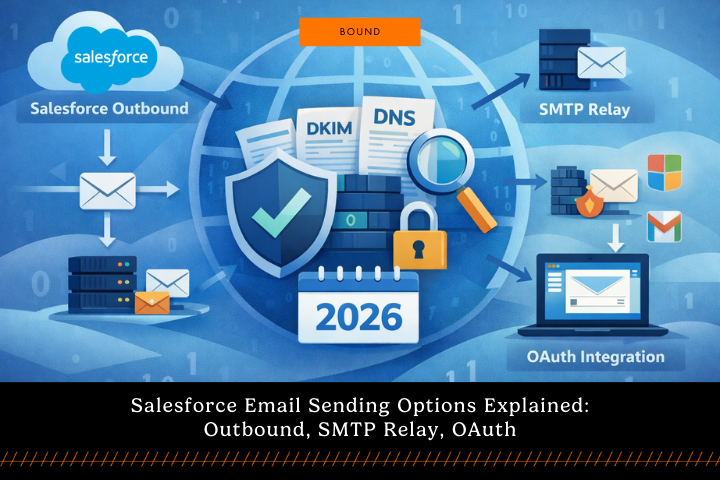
Salesforce has three main ways to send email: Salesforce outbound mail servers (Option 1), an SMTP email relay (Option 2), or OAuth mailbox sending through Microsoft 365 or Gmail (Option 3). This guide explains when to use each option, how email logging and security policies differ, and what the 2026 Salesforce domain verification deadlines mean for your org.
Use this quick rule of thumb to identify which option you’re using today. If Salesforce automation sends the email, you’re usually in Option 1. If IT requires centralized inspection and journaling, you’re usually in Option 2. If users send 1:1 emails to customers, you’re usually in Option 3.
Option 1: Salesforce Outbound Email
Send emails directly from Salesforce using Salesforce’s own mail servers. Salesforce creates the message and delivers it through its outbound email infrastructure. No external mail system is involved, and you do not need to connect Salesforce to Microsoft 365, Exchange, Gmail, or any other SMTP server.
Common Use Cases
- Smaller organizations without Microsoft 365 or Google Workspace
- Internal notifications generated by Salesforce automation (Very Common)
- Workflow email alerts, Flow notifications, and Apex-triggered emails
- Sandbox or development environments used for testing
- Temporary deployments where IT email infrastructure integration has not been completed
- Organizations that require Salesforce bounce management and email logs
In this model, Salesforce is the sending infrastructure, which is why domain verification requirements are most relevant to Option 1.
Option 2: SMTP Email Relay from Salesforce
You can send emails from Salesforce, but have them delivered through your company’s email relay. Salesforce creates the message, then hands it off to your SMTP relay server, which forwards it through your mail system and applies your standard controls before delivery.
Salesforce still generates the email content, but it does not send the email directly to the recipient. Instead, Salesforce connects to your company’s relay server using SMTP and passes the message into your mail infrastructure (for example, Microsoft 365 Exchange or Gmail).
From there, the relay server enforces your organization’s policies, such as security scanning, archiving, and logging, and then sends the email to the recipient.
Common Use Cases
- Organizations that require all outbound email to pass through a corporate security gateway
- Companies that archive or journal all outgoing email for compliance
- Organizations that enforce email scanning, DLP policies, or threat protection
- Companies that want consistent sender identity and domain reputation management
- Environments where IT needs centralized logging of outbound communications
- Companies that require Salesforce emails to pass through the same filtering systems used for employee email
This option can improve compliance controls, but deliverability still depends on your relay configuration and sender authentication (SPF, DKIM, DMARC) being correctly aligned.
Option 3: OAuth Email Integration
You can write emails in Salesforce, but send them through your user’s Microsoft 365 or Gmail mailbox. Salesforce connects to the user’s mailbox using OAuth, then delivers the message using that mailbox’s mail server instead of Salesforce’s email infrastructure.
The email is composed in Salesforce, but it's sent from the user’s personal account in Microsoft 365 Exchange or Gmail.
As a result, the message travels through the user’s mailbox server for delivery, not through Salesforce’s outbound email systems.
Common Use Cases
- Sales teams sending one-to-one emails from Lead, Contact, or Opportunity records
- Customer success teams sending account communications from their personal mailbox identity
- Organizations where employees want emails to appear directly in their Sent Items folder
- Environments where mailbox signatures, disclaimers, or add-ins must apply automatically
- Companies that require email conversations to stay synchronized between Salesforce and Outlook or Gmail
- Teams using Salesforce Inbox, Outlook Integration, or Gmail Integration
Because these emails originate from the user’s mailbox, this approach often aligns best with deliverability expectations and "Sent Items" visibility.
Now that you know the three sending paths, here’s the policy change that affects how Salesforce treats sender domains.
Salesforce Domain Verification Deadlines for 2026
Within the next few months, every Salesforce org needs to complete domain verification. Production orgs must verify by April 27, 2026, and sandboxes must verify by March 30, 2026. For the full rollout schedule, refer to the Salesforce Help article.
This requirement applies to anyone using Option 1 (sending email directly through Salesforce mail servers). A common example is automation, like an alert email sent to your sales team whenever a rep closes an opportunity. Because that message is generated by automation, it’s typically delivered through Salesforce’s mail servers.
Even if your users send 1:1 emails via Option 3, many orgs still rely on Option 1 for automation.
Salesforce Domain Ownership Verification Explained
Starting March 9, 2026, Salesforce requires domain ownership verification for sending email. Any domain used as a "from" address in Salesforce must be verified. This change does not affect emails sent through Gmail or Microsoft 365 (Outlook) integrations or via Salesforce Einstein Activity Capture (EAC) (Options 2 and 3).
There are 2 options for verifying your email-sending domains.
- DKIM (DomainKeys Identified Mail): Set up a DKIM key via the process detailed in Salesforce Help.
- Authorized Email Domains: Verify your domain ownership with Salesforce by following the process outlined in Salesforce Help. Users with an email address on an authorized and verified email domain can send emails from that address through Salesforce.
Although both options satisfy the domain verification requirements, DKIM is typically the recommended path because it will digitally sign outgoing email, help improve inbox placement or sender reputation, and protect the message’s integrity during transit.
Best Email Sending Option for Prospects & Customers in Salesforce
If you’re emailing prospects or customers from Salesforce, Option 3 typically improves deliverability, keeps messages visible in both Salesforce and the mailbox, and ensures your company policies apply.
At Concept, we usually recommend Option 3 (sending Salesforce emails through your Microsoft 365 Exchange or Gmail server) when connecting email to Salesforce, but the right choice can vary based on your requirements and use case.
If most email is automated or IT requires all outbound to be relayed and journaled centrally, Option 1 or Option 2 may be a better fit.
How to Set Up Option 3 for Salesforce Email with Microsoft 365 or Gmail
Salesforce provides a detailed setup guide (linked here), but below are the high-level steps.
- Choose an authentication model: decide whether you want to connect mailboxes using user-level OAuth (each user authenticates individually) or org-level OAuth (admins authorize once and control access centrally). We typically prefer org-level OAuth because it’s easier to manage and does not require users to complete extra setup steps.
- Assign permissions: give the users who will connect their inbox the required permission set (often “Standard Einstein Activity Capture”).
- Configure the Inbox/EAC connection in Salesforce: set up your configuration and authorize Gmail or Microsoft Graph to establish the connection. This typically includes:
- Choosing what to sync (email, calendar, and/or contacts).
- Excluding domains you do not want automatically captured (usually your internal company domain).
- Assigning users to the configuration (the same users you gave the permission set to).
- End-user experience: if you use user-level OAuth, users will authenticate their Microsoft 365 or Gmail account in Salesforce. If you use org-level OAuth, users typically only need to accept the terms and conditions to start using the tool.
- Validation: send a test email from a record and confirm it appears in Salesforce activity and the user’s Sent Items.
How to Choose the Right Salesforce Email Model and Stay Compliant
Salesforce email can be simple once you separate how the message is sent from how the sender domain is secured. Start by identifying which option you rely on most (automation and system alerts typically map to Option 1, while user-to-customer emails usually map to Option 3, and compliance-heavy environments often require Option 2). Then confirm your domain verification approach (DKIM is usually the strongest long-term choice) and complete verification ahead of the 2026 deadlines, so outbound mail is not interrupted.
For Salesforce help, reach out to Concept.
Partner With Concept
Share your details and our team will reach out to discuss collaboration opportunities